Grass Animator
NEWGrass Animator lets you animate A+ Grass interactions along configurable paths.
Quick Setup
To get started with Grass Animator, create a new GameObject in your scene and add Grass Animator component to it. You can start adding path points using the shown buttons, and adjust their position in scene view/window. When you enter playmode you can test the animation!
Frame Animations
There is no point re-inventing the wheel. For frame animations to adjust the interactor's scale, rotation and so on use the Unity's Animator and Animation windows. You can adjust the Transform values as well as the variables within the Interactor component.
Grass Animator
To get started create a new GameObject, and add the Grass Animator component to it.
Animation Settings
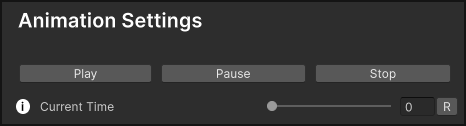
First thing on Grass Animator is the Animation Settings. You have 3 buttons that let you Play, Pause and Stop the animation during playtime. You also have a Current Time slider for preview of what stage the animation is on. These are useful when testing animations when in play mode.
Note: For performance purposes it is not updated often and so it doesn't slide smoothly whilst playing. This is only a preview in editor, and does not affect smoothness of the actual animation.
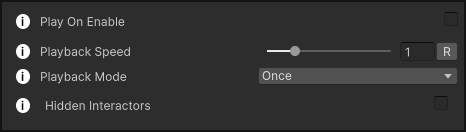
If you want the animation to start playing automatically, toggle Play On Enable and it will start when in play mode. Adjust Playback Speed slider to change how quick the animation is.
You can change Playback Mode into 3 settings:
- Once - The animation will play until it reaches the end and will stop.
- Loop - The animation will continuously loop.
- Ping Pong - The animation will reach the end and then play backward, on repeat.
Hidden Interactors can be toggled to enable grass interactors interaction only when in motion. By default (when off) interactors will always interact with the grass and push/bend it when moved in world space. (Look at Demo05 scene and Attacks example for context)
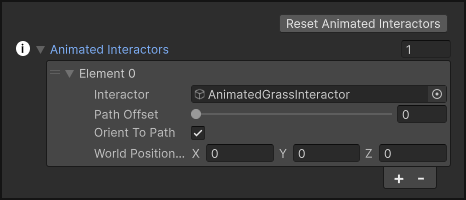 By default, when you create a Grass Animator, it will automatically create the first interactor and call it AnimatedGrassInteractor set as first element in the list. You can have as many animated interactors that follow the path, jsut duplicate it or create a new one and assign it to the list.
You can set a Path Offset for each interactor to start at a different point along the path. Toggle Orient To Path to make the interactor align with the path's direction facing forward. And if neededm, adjust the World Position Offset per interactor.
By default, when you create a Grass Animator, it will automatically create the first interactor and call it AnimatedGrassInteractor set as first element in the list. You can have as many animated interactors that follow the path, jsut duplicate it or create a new one and assign it to the list.
You can set a Path Offset for each interactor to start at a different point along the path. Toggle Orient To Path to make the interactor align with the path's direction facing forward. And if neededm, adjust the World Position Offset per interactor.
Path Setup
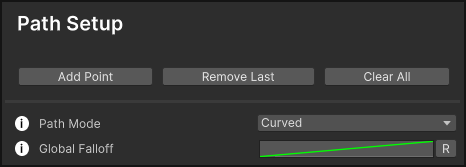 The Grass Animator works by animating interactors along path. Add Point button will add a new point to the path. This will be a new GameObject set as a child of GrassAnimator. Remove Last button will remove the last point in the path. Clear All button will remove all points in the path.
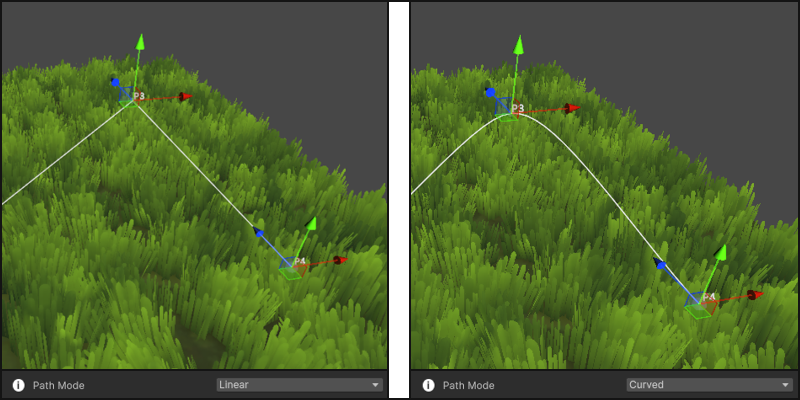 You can change the Path Mode to either Linear or Curved. Linear will make the path go straight from point to point, while Curved will make the path curve and smoothly interpolate between points.
There is a Global Falloff setting that will affect all points in the path and is set as from start to finish of the animation. You can also adjust falloffs per point inside Path Points.
You can change the Path Mode to either Linear or Curved. Linear will make the path go straight from point to point, while Curved will make the path curve and smoothly interpolate between points.
There is a Global Falloff setting that will affect all points in the path and is set as from start to finish of the animation. You can also adjust falloffs per point inside Path Points.
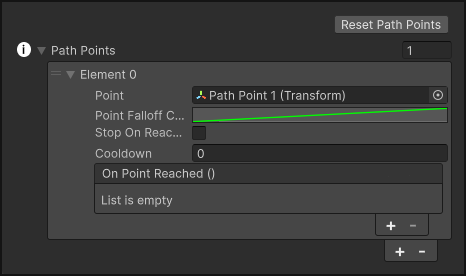 Each path point has its own settings. You can adjust the Falloff make the interactors pause if toggled Stop On Reached point and adjust the Cooldown for duration of the stop.
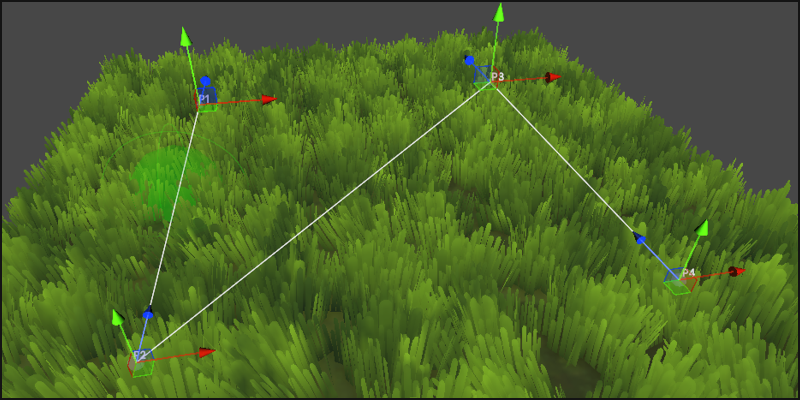 You can also set off events using On Point Reached Unity Event, which will trigger when an interactor reaches that point.
Gizmos
 Like with everything in this asset, you can enable gizmos and adjust the colours of the path of the Grass Animator.