Placement Tool
NEWPlacement Tool provides placing of A+ Grass prefabs in your scenes. This can also be used for other prefabs in your project, and help boost productivity and provide an easier, more efficient world building.
Getting Started
The placement tool can be accesssed from the menu bar at the top of the Unity editor.
Go to Tools > 4ydam/A+ Grass/Grass Placement Tool This will open up a new window accessing Placement Tool.
Prefab Palettes
To start, create a new palette by clicking the New button in Palette section. This will create a new palette and you can start adding prefabs to it.
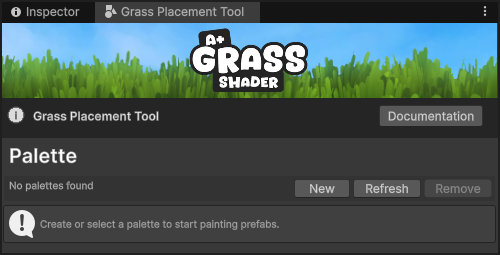
You can drag any prefab from your project into the palette, so it doesn't just have to be used for grass placement, but any objects you want to place in your scene. You can create however many palettes in your project and switch between them using the dropdown.
If your palette is not showing click Refresh button. If you want to get rid of a palette use Remove button.
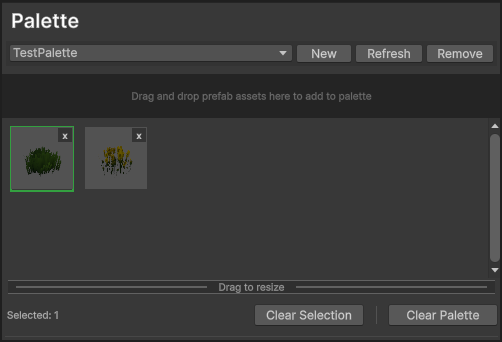
Before painting/placing prefabs in your scene, you need to first select which ones you want to use. You can do so by left clicking on any of the prefabs visible in the palette preview. If selected it will have a green outline.
You can select multiple prefabs at once, which will select one at random when painting. You can de-select prefabs by clicking on them again, or using Clear Selection button to deselect all.
Watch Out: Clear Palette button will remove all prefabs from the palette.
Tools
There is 3 tools in Grass Placement Tool.
 Click and select one of the tools to enable/use it. When selected, click again to disable it.
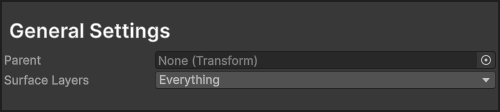 In General Settings you can set what GameObject will be used as a Parent for placed prefabs. If left empty, one will be created automatically. Additionally you can set what Surface Layers you can paint on, including or excluding set layers.
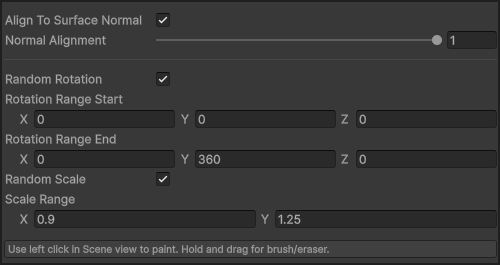 When using either Pin or Brush, you will get additional settings under General Settings section. Align To Surface Normal if enabled will spawn set prefabs aligned to the surface you paint over. You can adjust how well it should do so with Normal Alignment slider.
You can also set Random Rotation and Random Scale to add more variation to your placed prefabs.
When using either Pin or Brush, you will get additional settings under General Settings section. Align To Surface Normal if enabled will spawn set prefabs aligned to the surface you paint over. You can adjust how well it should do so with Normal Alignment slider.
You can also set Random Rotation and Random Scale to add more variation to your placed prefabs.
Note: If you're using Perspective Correction, make sure you DO NOT use random rotation to place your grass as it will break the effect. Random scale is fine to use.
Pin
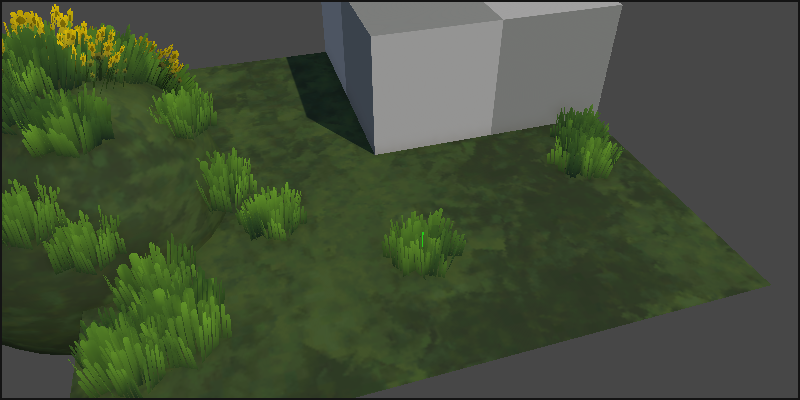 The pin tool is a simple click to place selected prefabs on the chosen surface. There is no additional settings for this tool. However, just like with the brush, you can select multiple prefabs in the palette, which will choose a random out of them with each placement.
Brush
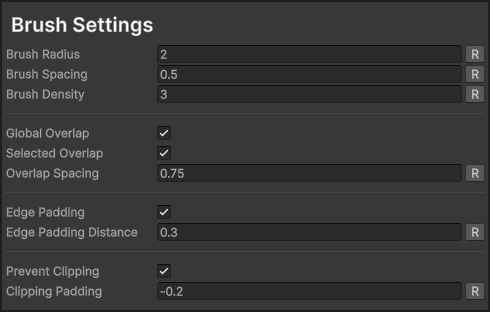 The brush allows you to click drag selected prefabs over the surface quickly and efficiently.
You can adjust Radius to change the size of the brush, Spacing of the prefabs from one another, and Density for how many prefabs will be spawned in the brush area.
The brush allows you to click drag selected prefabs over the surface quickly and efficiently.
You can adjust Radius to change the size of the brush, Spacing of the prefabs from one another, and Density for how many prefabs will be spawned in the brush area.
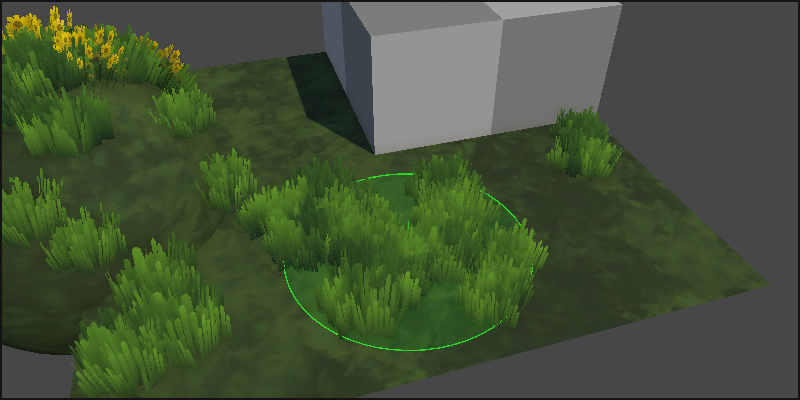 When paint over same area, you can prevent overlap of the prefabs by enabling Overlap prevention. Global Overlap will prevent from all prefabs you paint from overlapping. Selected Overlap will prevent only the selected prefabs in the prefabs Palette from overlapping. You can also adjust Overlap Spacing to set the minimum distance between overlapping prefabs.
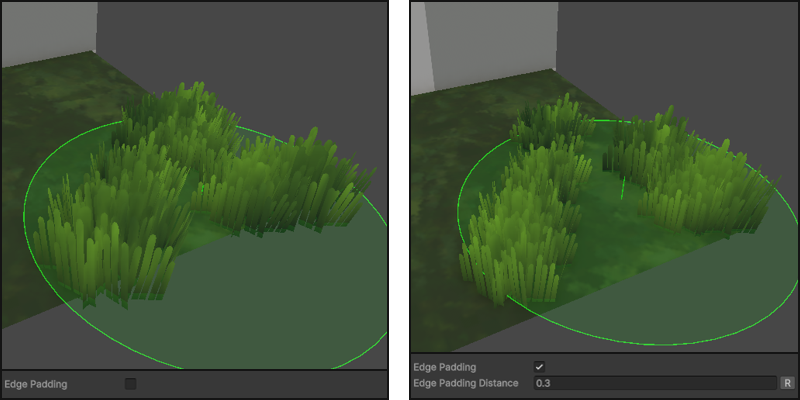 Edge Padding prevents prefabs being placed too close to the edge of the surface you are painting on. Edge Padding Distance sets the distance from the edge.
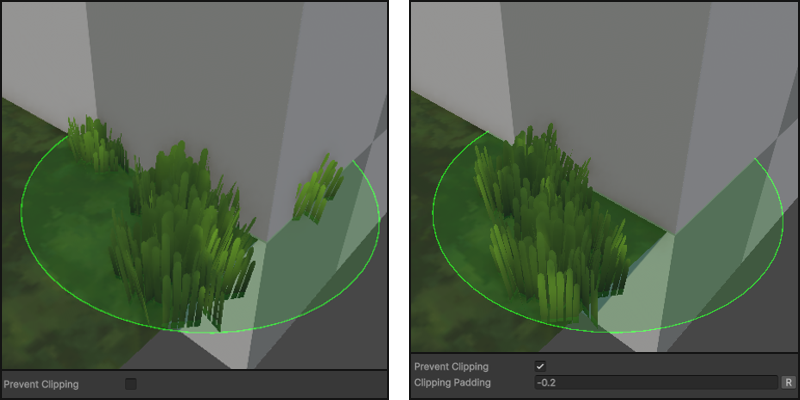 You can make sure that prefabs don't spawn inside your environment by enabling Prevent Clipping. This will prevent prefabs from spawning inside other colliders. Make sure that inside Surface Layers you have excluded the layers of the colliders you want to check against. You can then adjust Clipping Padding to set the distance from the colliders.
Eraser
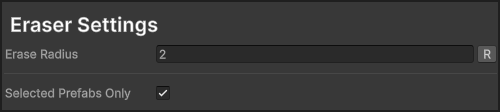 Eraser lets you remove placed prefabs by click and drag in your scene over the painted surfaces. You can adjust Eraser Radius to change scale of the area covered.
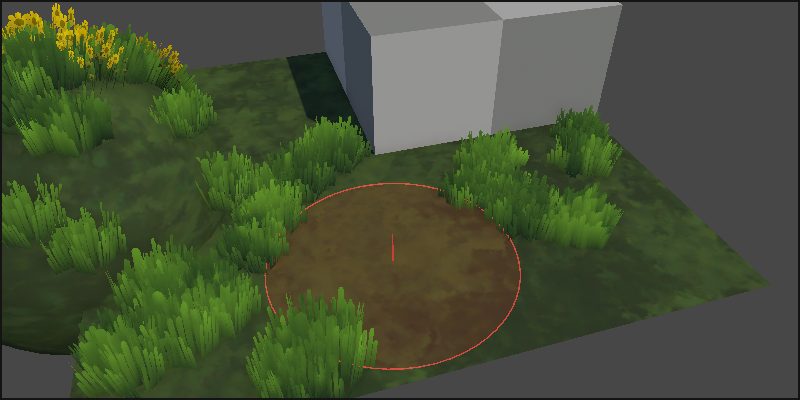 Additionally what you can do is target specific prefabs using Selected Prefabs Only by selecting prefabs in your palette for which ones you want to be able to erase, rather than everything.